IT / Desktop Support Project
Windows Server Home Lab — Active Directory Domain from Scratch
The Goal
Nearly every IT support job posting lists Active Directory experience — but it's hard to get AD experience without already working in IT. My solution: build my own. Using VirtualBox on my laptop, I deployed a Windows Server 2022 virtual machine, promoted it to a domain controller, and practiced the day-to-day tasks help desk technicians perform in real environments: managing users, resetting passwords, organizing groups, and configuring Group Policy.
The Setup
- Host: My personal laptop (12GB RAM, NVMe SSD)
- Hypervisor: Oracle VirtualBox
- Guest OS: Windows Server 2022 Standard Evaluation (Desktop Experience)
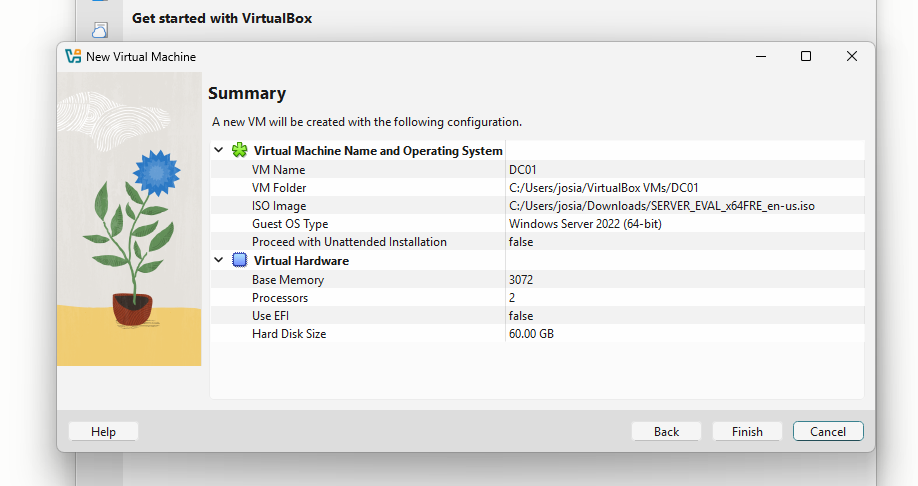
- VM specs: 3GB RAM, 2 CPUs, 60GB dynamically allocated disk
With limited host RAM, I sized the VM deliberately — enough to run Active Directory Domain Services comfortably while leaving headroom for the host OS.
Building the Domain Controller
- Created the VM (DC01) in VirtualBox and installed Windows Server 2022 with the Desktop Experience.
- Renamed the server to DC01 — VirtualBox's VM label doesn't change the name inside Windows, so I verified the actual hostname from the command line and renamed it through Server Manager's system properties.
- Assigned a static IP address with the server pointing to itself for DNS — standard practice for a domain controller, since AD depends on DNS.
- Installed the Active Directory Domain Services role through Server Manager and promoted the server to a domain controller, creating a new forest: islas.local.
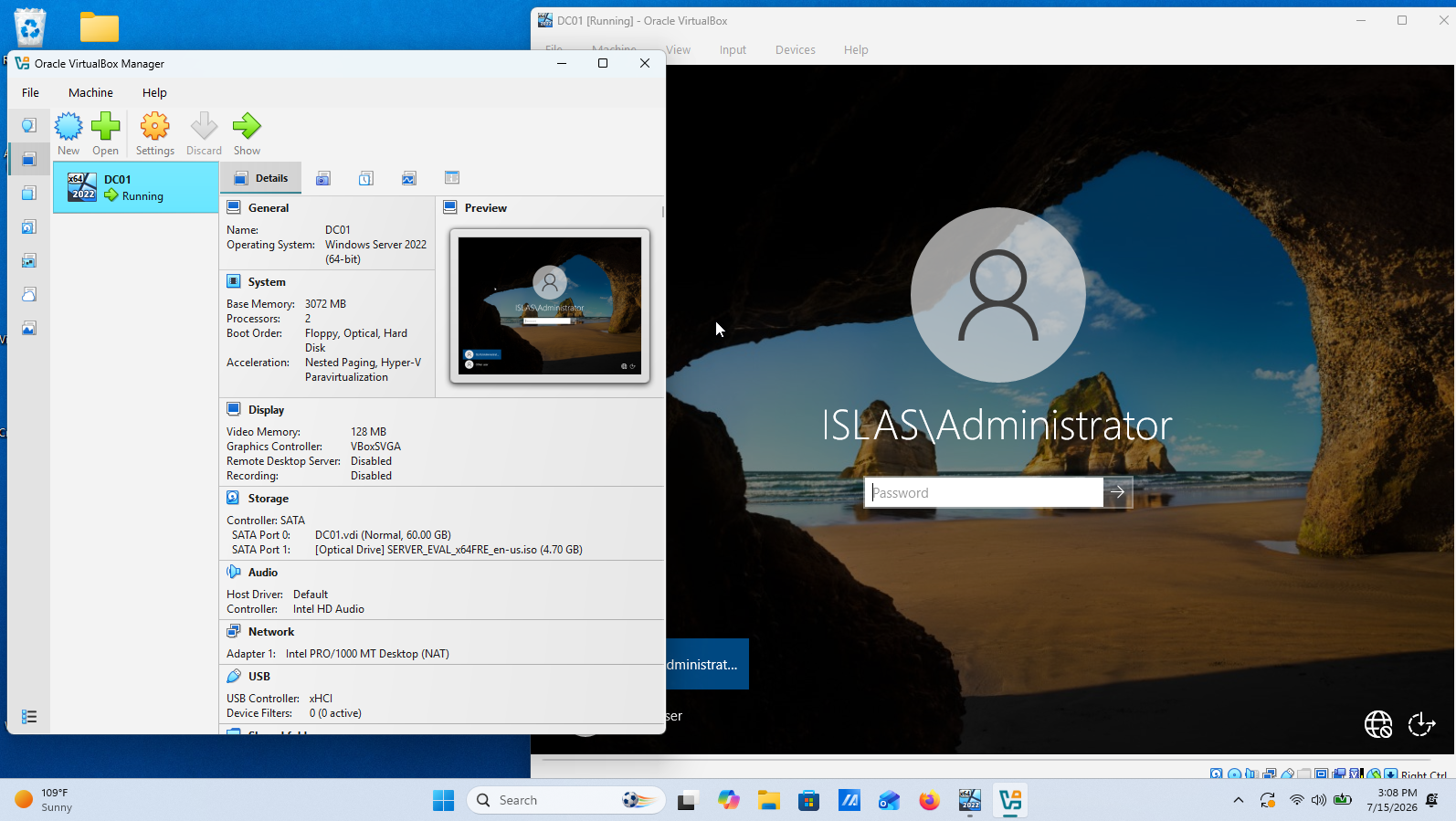
After the promotion reboot, the login screen read ISLAS\Administrator — confirmation the domain was live.
Administering the Domain
With the domain running, I practiced the core tasks of real IT support work in Active Directory Users and Computers (ADUC):
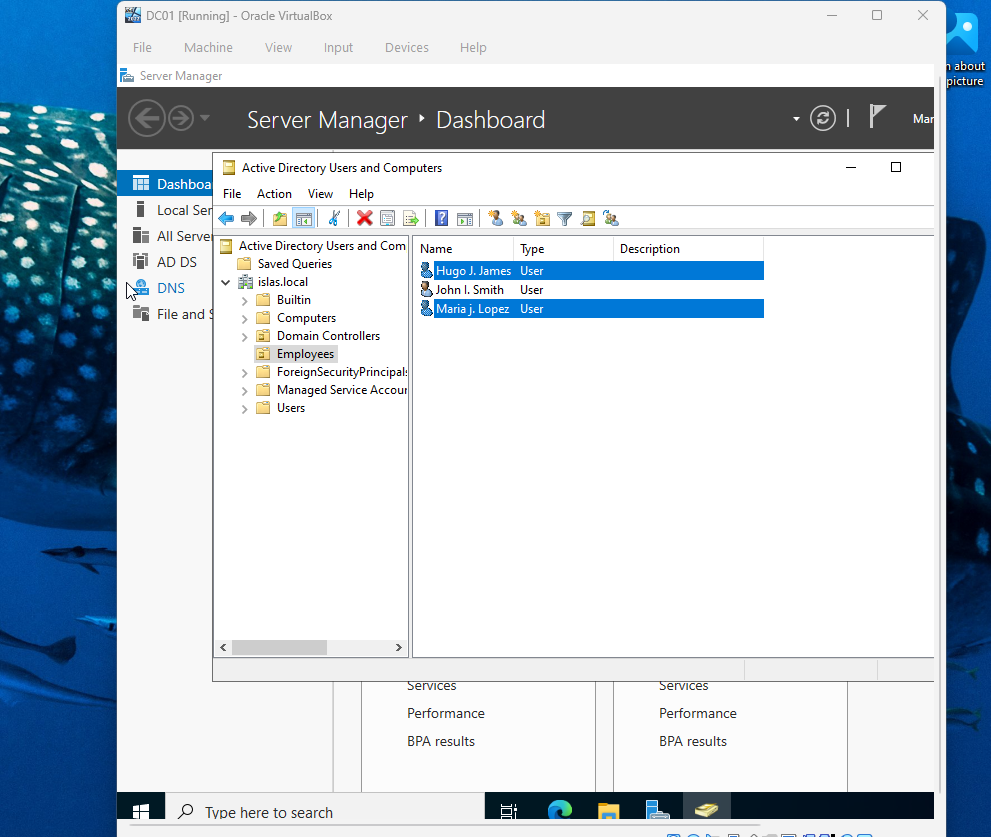
- Built an Organizational Unit (OU) called Employees to structure the domain the way real companies do
- Created domain user accounts using standard naming conventions, with "user must change password at next logon" enabled — mirroring a real new-hire onboarding process
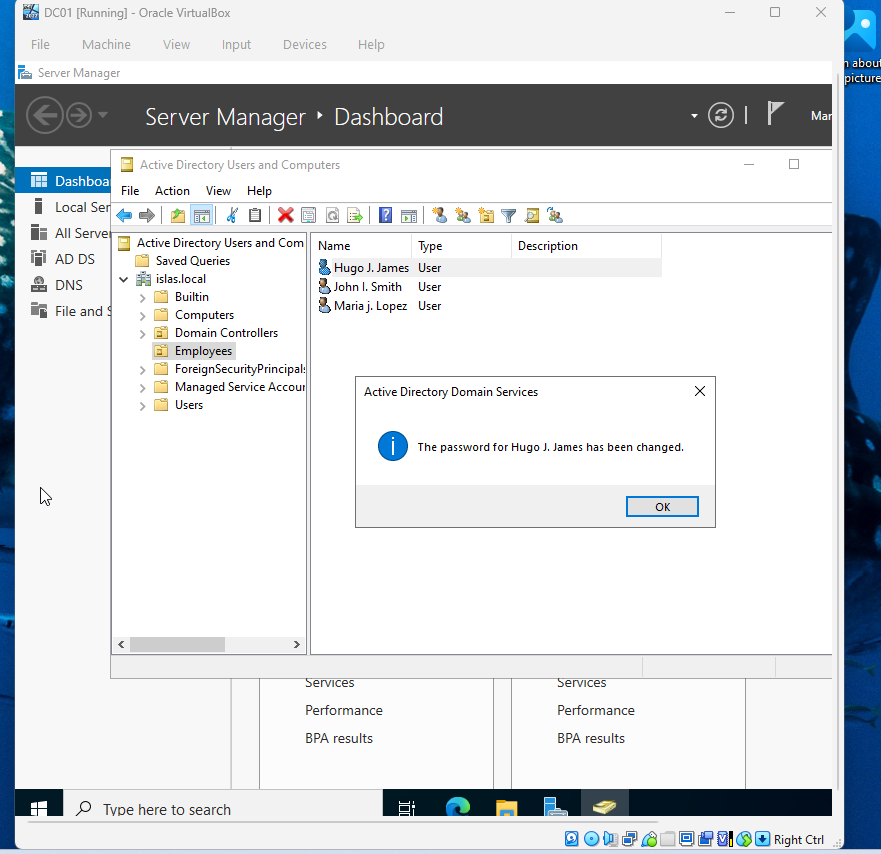
- Performed password resets — the single most common help desk ticket
- Practiced account lifecycle tasks like disabling accounts (offboarding) and editing user properties
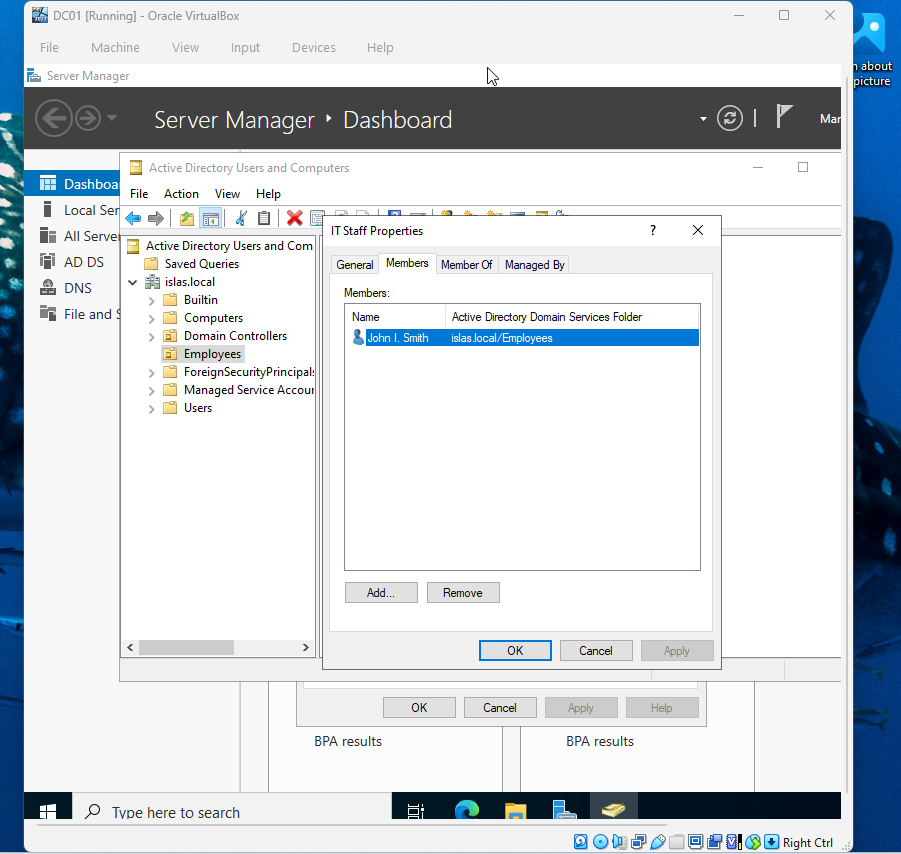
- Created a security group (IT Staff) and managed group membership — the foundation of how organizations control access to resources
Group Policy
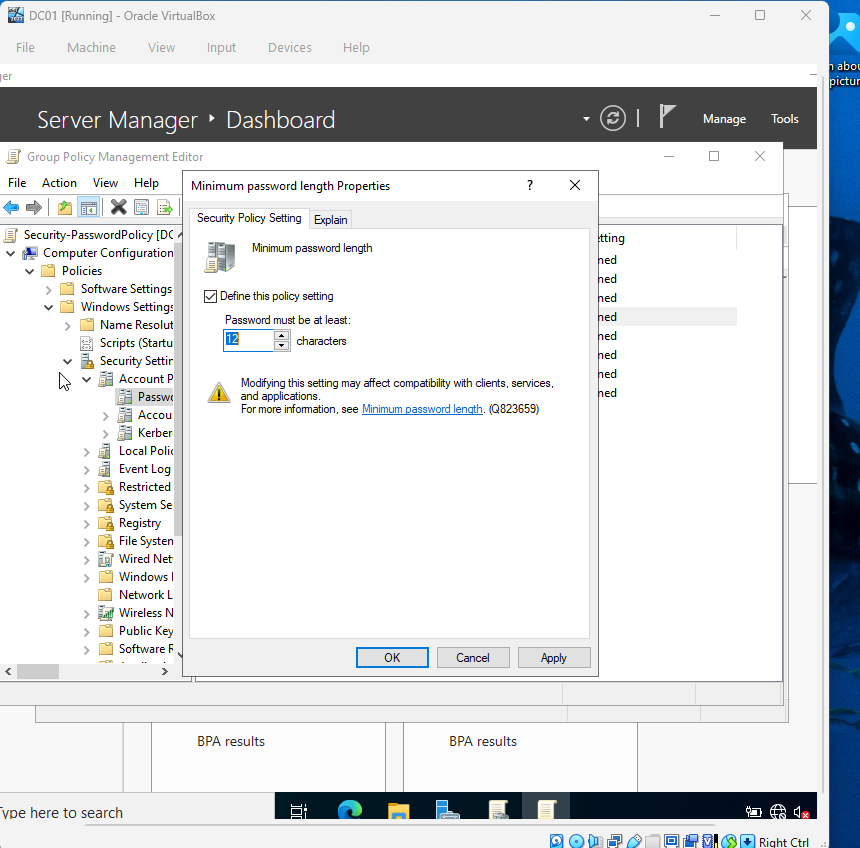
Using the Group Policy Management Console, I created a GPO linked to the Employees OU and configured:
- A password policy requiring a minimum length of 12 characters with complexity requirements
- A workstation lockdown policy prohibiting access to Control Panel and PC Settings — a common restriction for standard user machines
Troubleshooting Along the Way
- VirtualBox's unattended installation trap: By default, VirtualBox tries to auto-install the OS, which skips the edition-selection screens needed to choose Desktop Experience. I caught the "Proceed with Unattended Installation" checkbox before creating the VM and disabled it so I could perform the installation manually.
- VM label vs. actual hostname: Naming the VM "DC01" in VirtualBox doesn't rename the Windows installation itself. I verified the real hostname with the
hostnamecommand and performed the rename inside Windows before promoting the server — important, since renaming a domain controller after promotion is much messier.
What I Learned
- How Active Directory, DNS, and domain controllers fit together
- Hands-on fluency with the tools help desk teams live in daily: Server Manager, ADUC, and Group Policy Management
- The full user account lifecycle: creation, password resets, group membership, and disabling accounts
- Resource planning for virtualization on constrained hardware